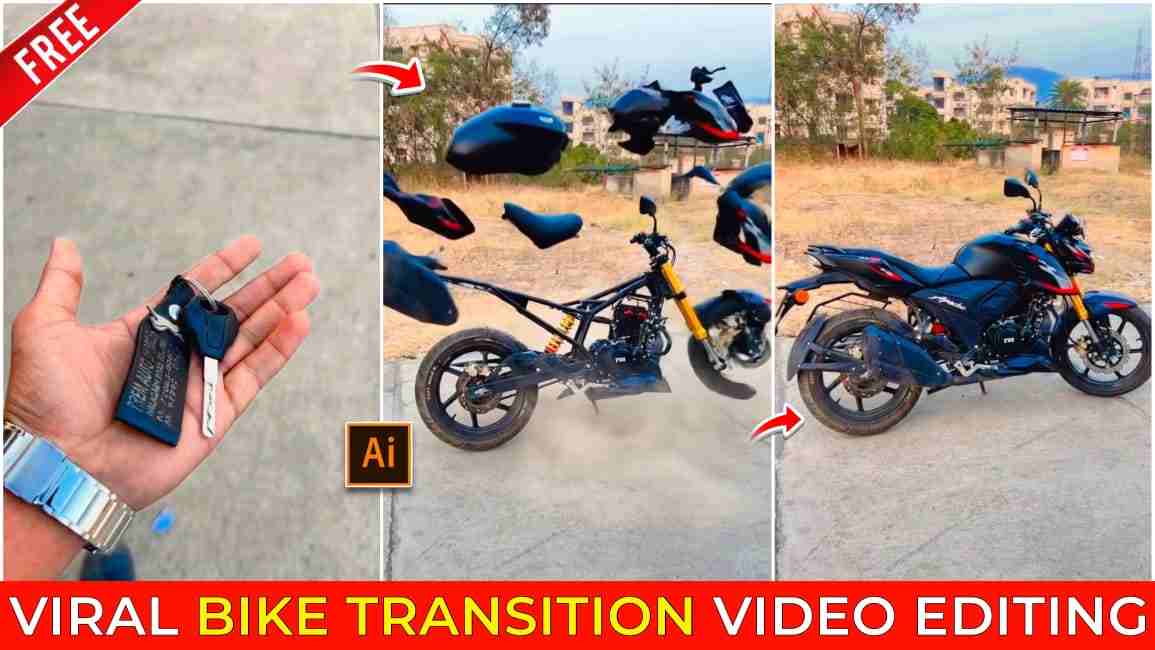
Friends, if you have a bike and love riding, you should definitely try this AI bike transition video trend that is currently going viral on Instagram. Many bikers are creating these eye-catching AI videos with their bikes and posting them on social media, gaining a huge number of views and engagement. This trending AI video features an amazing and smooth transition from a bike key to the bike, giving it a cinematic and professional look. The best part is that you can easily edit this bike transition AI video using a simple prompt on Flow AI, without needing advanced editing skills. In this article, everything has been explained in easy and simple steps, so make sure to read the full article for better understanding and accurate results.
What is the Key to Bike Transition AI Video Trend?
The key-to-bike transition AI video is trending on Instagram because it features a cinematic transformation where a bike key is thrown away and instantly turns into a fully assembled bike with realistic sound effects. This smooth AI transition makes the video highly engaging and perfect for short-form platforms like Reels. The biggest advantage of this trend is that it requires no editing skills—you only need a simple AI prompt and your key and bike images. In the section below, the complete editing process using Flow AI is explained step by step, so follow it carefully to create your own viral AI bike transition video.
Best AI Prompt for Viral Key to Bike Transition Video
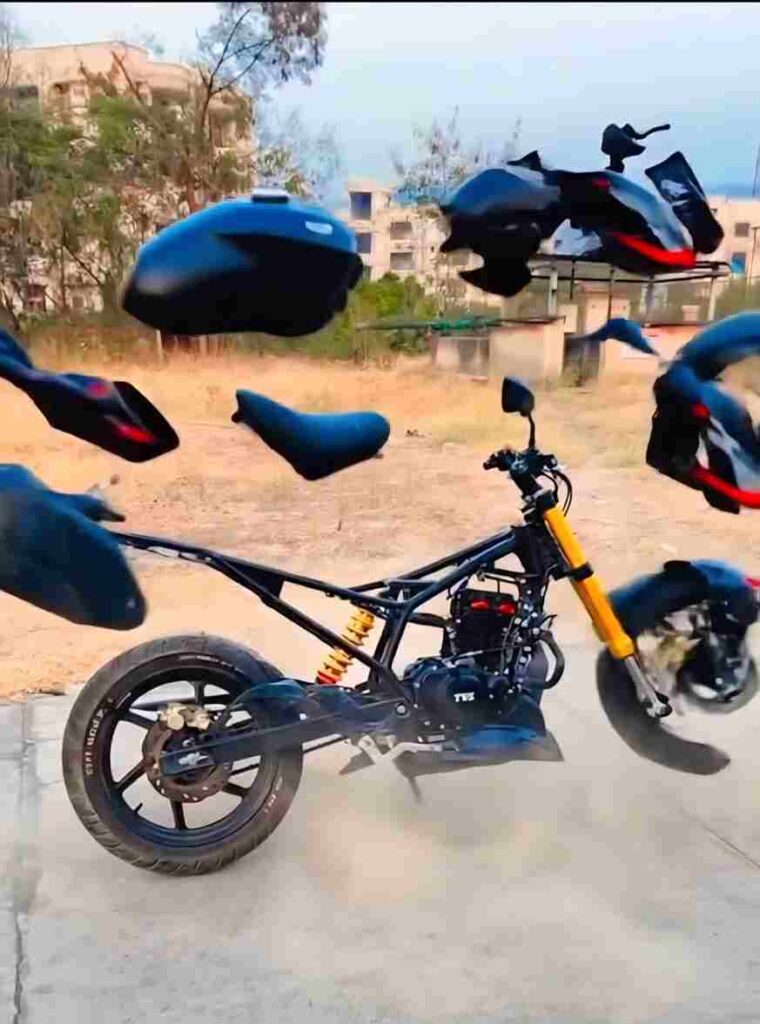
The key falls in smooth slow motion and transforms into a rotating motorcycle front tyre as it touches the ground, with soft dust flowing outward. Motorcycle parts enter from outside the frame in a strict step-by-step order: first the fuel tank, then the rear tyre, followed by all remaining components-frame, suspension, engine, exhaust, handlebars, seat, panels, cables, bolts, and body elements-each rotating, aligning, and attaching one by one with precise mechanical motion. The assembly is fast but sequential, with only one major part attaching at a time, enhanced by motion blur, air movement, and ground dust. The motorcycle completes seamlessly into the second image, fully assembled and realistic as dust Settles
Steps to Create a Viral Key-to-Bike Transition AI Video
- Open any browser or Google on your device.
- Search for Flow AI and open the official website.
- Click on the Create with Flow option.
- Sign in using your email ID or Google account.
- After logging in, click on New Project.
- Select Text to Video and then choose Frames to Video.
- Upload your bike key image first, then upload your bike image.
- Paste the AI prompt in the prompt box.
- Wait for a few moments while the AI generates the video.
- Once the video is ready, preview it and download your viral key-to-bike transition AI video.
How to fix video could’t generate problem on flow ai?
While creating videos on Flow AI, you might occasionally run into errors such as “video couldn’t be generated” or policy violation messages. Don’t worry — these issues are quite common and can usually be fixed in a few simple steps. Start by regenerating the video, as temporary glitches often resolve themselves on a second attempt. If the problem still persists, log out of your current account and sign back in, or try using a new account before generating the video again. Based on my experience with Flow AI, there are times when the video is actually created but doesn’t appear right away due to a loading delay. To check this, click on your profile icon and open the Library section — you’ll often find your generated video waiting there. By following these simple troubleshooting steps, you can quickly fix most video generation problems on Flow AI and continue creating content without interruptions.
Conclusion
Friends, in this article, I’ve explained step-by-step how you can create a viral key-to-bike AI transition video using Flow AI in a simple and beginner-friendly way. I’ve also covered solutions to some of the most common issues users face while working with Flow AI, so you can avoid mistakes and create your video smoothly. However, if you still run into any problems after following all the steps, feel free to drop a comment below or connect with me on Instagram. I’ll do my best to respond as quickly as possible and help you resolve the issue without any hassle.