
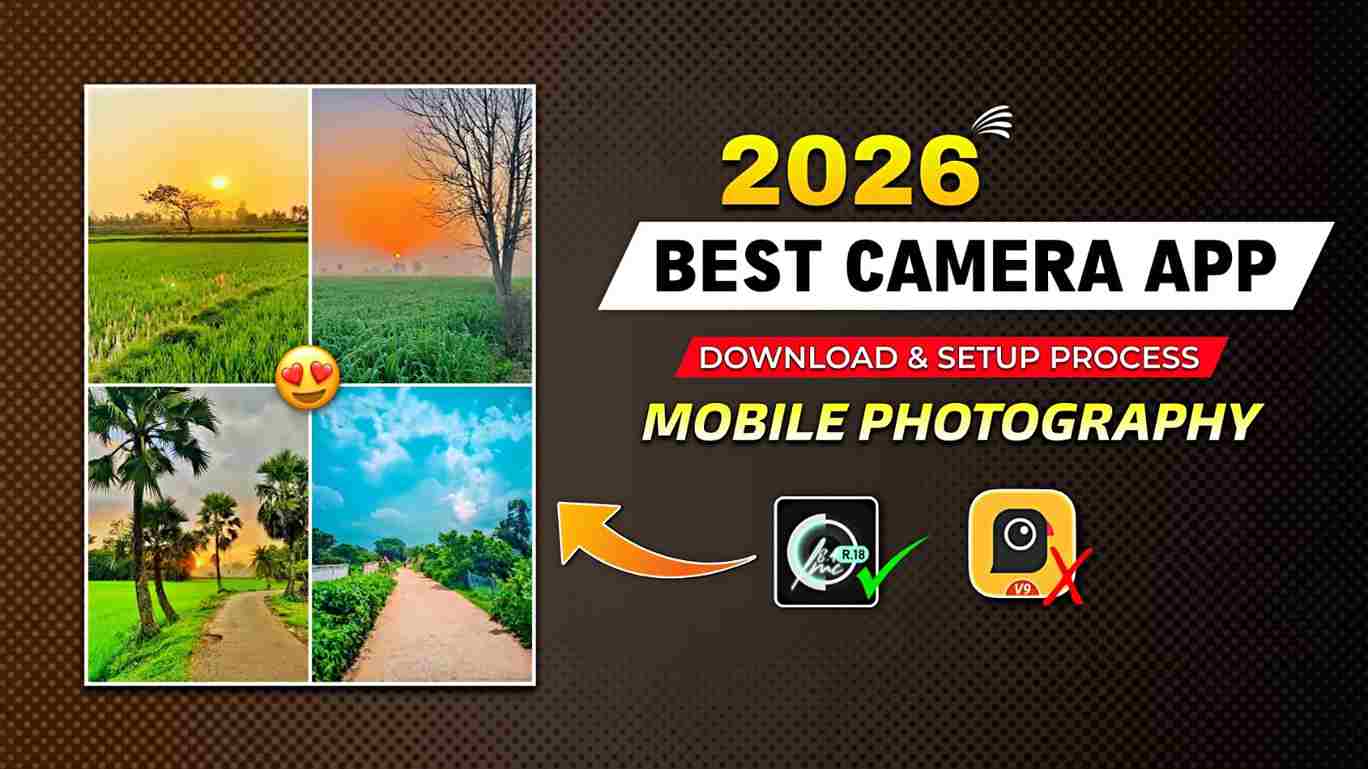
In today’s article, I am going to cover one of the most important topics for those who want to take photos on a normal Android phone that look like they were taken with an iPhone. If you are interested in mobile photography, then you should read this entire article. In it, you will learn how to install and set up LMC config files from A to Z. Along with that, I will share 50+ config files that help you capture photos in different filters and styles. In the paragraphs below, all the necessary details are provided, so please read the full article for a better understanding.
What is the LMC 8.4 Camera App and Config Files?
LMC 8.4 is a mobile camera app that offers many features that the built-in phone camera does not provide. The best part of this app is that you can import multiple config files, allowing users to capture photos in different color tones such as moody, cinematic, aesthetic, sky aqua, blue tones, and more, which is why it has become very popular among users.
Config files are similar to filters or LUTs that enhance the overall look of images and make them more visually appealing. To use them, you need to download and extract the files on your phone, and after following a few simple steps, you can start taking high-quality photos easily. Below, I have provided 50+ config files, so you don’t need to worry—just import them and start using the LMC camera.
How to Set Up LMC 8.4 Camera App
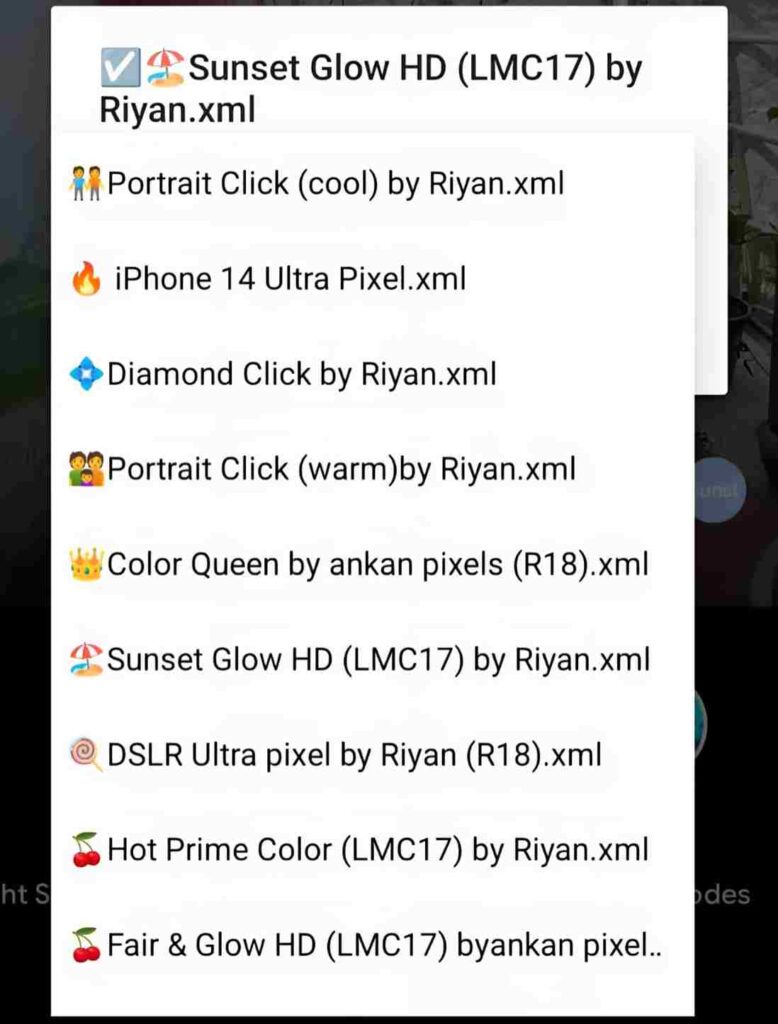
If you want to make your LMC camera ready for taking pictures, you need to follow a few simple steps. First, visit the Telegram channel given below, where you can download both the LMC camera app and the config files. Then, open the LMC camera app and grant all the necessary permissions. Next, extract the config files to your internal storage, select all the files, and move them to the LMC 8.4 folder. Once your setup is complete, open the LMC app and double-tap on the right or left side of the capture button. All the config files will be displayed—simply select any one and click on the import button. Now, capture photos at a beautiful location, and I’m sure you will see amazing results!
Complete Guide to Fix App Installation Errors on Android
This complete guide will help you solve common app installation errors on Android devices quickly and easily. If you are facing issues like “App Not Installed” or “Parsing Error,” start by checking if your device has enough storage and ensure that the APK file is not corrupted. Make sure to enable installation from unknown sources in your phone settings and confirm that the app is compatible with your Android version. You should also clear the cache of the Package Installer or Google Play Services and uninstall any previous versions of the app before installing a new one. If the problem still persists, try restarting your device or downloading the APK file again from a trusted source. By following these simple steps, you can fix most installation issues and install apps without any hassle.
Conclusion
In this article, I have explained how to set up the LMC 8.4 camera app and config files in simple steps, along with solutions to common app installation problems. If you read the full article and follow all the steps carefully, you will be able to use the LMC app easily. However, if you still face any issues, such as installation errors or parsing problems, you can leave a comment or contact me on my Instagram handle.