
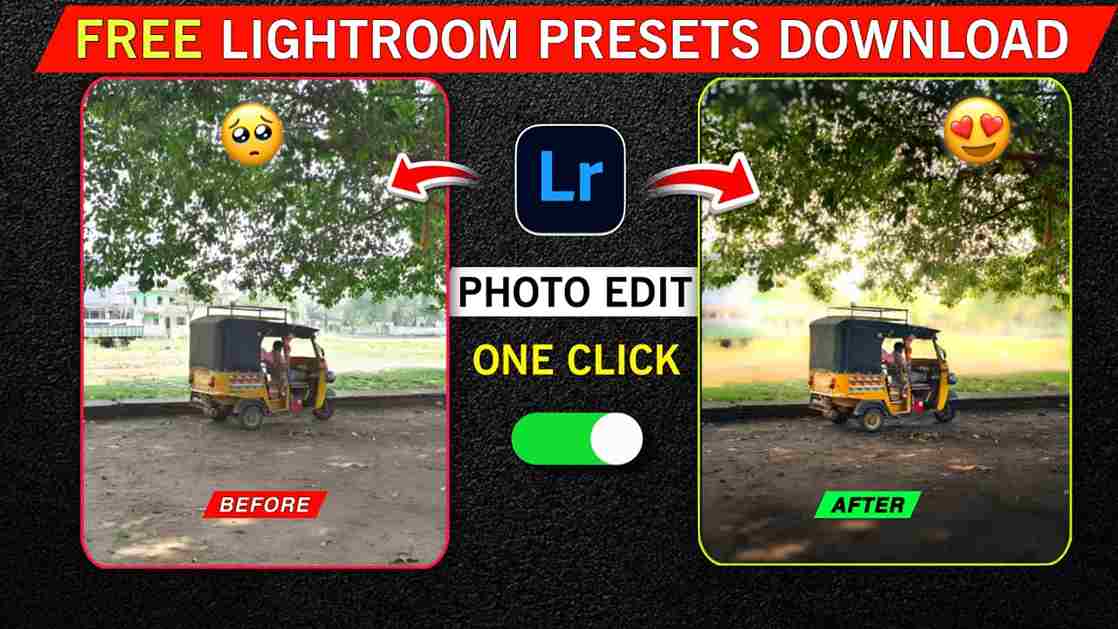
If you want to edit your photo like a professional in just one click, then you have come to the right place because here I am going to share some amazing Lightroom presets through which you can easily transform any normal photo into a cinematic glow look. Such edits usually take hours when done manually, but with the help of a preset, your photo can be edited in just one click. You just need to follow the steps given below, so please read the full article carefully for a better understanding.
What Is the Lightroom App?
Adobe Lightroom is a powerful and easy-to-use photo editing app developed by Adobe Inc. It is widely used by photographers, content creators, and social media users to enhance their images professionally. The app offers tools to adjust lighting, colors, contrast, sharpness, and more, helping you transform normal photos into high-quality visuals. Lightroom also provides presets for quick one-click editing, along with advanced features like color grading, masking, and RAW photo support. With cloud syncing and simple organization options, it makes photo editing smooth, efficient, and convenient.
What Are Lightroom Presets?
Lightroom presets are pre-made settings that enable you to apply a specific look or style to your photo. They make things easier for new Lightroom users because learning each tool in Lightroom takes time. However, with the help of Lightroom presets, they can easily edit any photo in just a few steps. One good thing about presets is that you can also create your own when you have better knowledge of Lightroom, and you can share them with your followers and friends.
How to Use Lightroom Presets (Simple Steps)
Follow the simple steps below to apply a preset to your photo:
- First, download the preset file to your device.
- Next, open the Lightroom app and import the downloaded preset.
- Open the preset image, tap on the three dots in the top corner, and select Copy Settings.
- Then open the photo you want to edit, tap on the three dots again, and select Paste Settings.Your preset will be applied instantly, and your photo is ready with a professional look.

Benefits of Using Lightroom Presets
Lightroom presets offer multiple benefits for both beginners and professional editors. By using Lightroom presets, users can easily apply a complete set of adjustments to their photos, such as color grading, cropping, image quality enhancement, skin tone correction, and more, with just one click. This not only simplifies the editing process but also saves a significant amount of time, as there is no need to manually adjust each setting. Additionally, Lightroom regularly introduces new features, including advanced AI tools, which further enhance the effectiveness of presets and make photo editing faster, smarter, and more professional.
Best Places to Find Free Lightroom Presets
You can find new and free Lightroom presets from my social media handles, where I regularly share useful editing resources. You can also search for content creators who provide Lightroom presets on Instagram and follow them, as many creators share free presets with their followers. Additionally, some creators organize giveaways where they provide premium presets for free, so you can participate in those as well. Another simple method is to search on Google for “free Lightroom presets,” where you will find many websites offering free preset downloads. I hope these methods help you find new and free presets easily.
Conclusion
In this article, I have explained how to turn your normal photo into a cinematic glow look using a Lightroom preset. I have also described the process of applying preset settings to your own photo in simple steps and shared multiple ways to find free and new Lightroom presets. I hope this article helps you improve your editing. If you still face any problems, you can let me know in the comment box or contact me through my social media handles. I will try to resolve your issue as soon as possible.