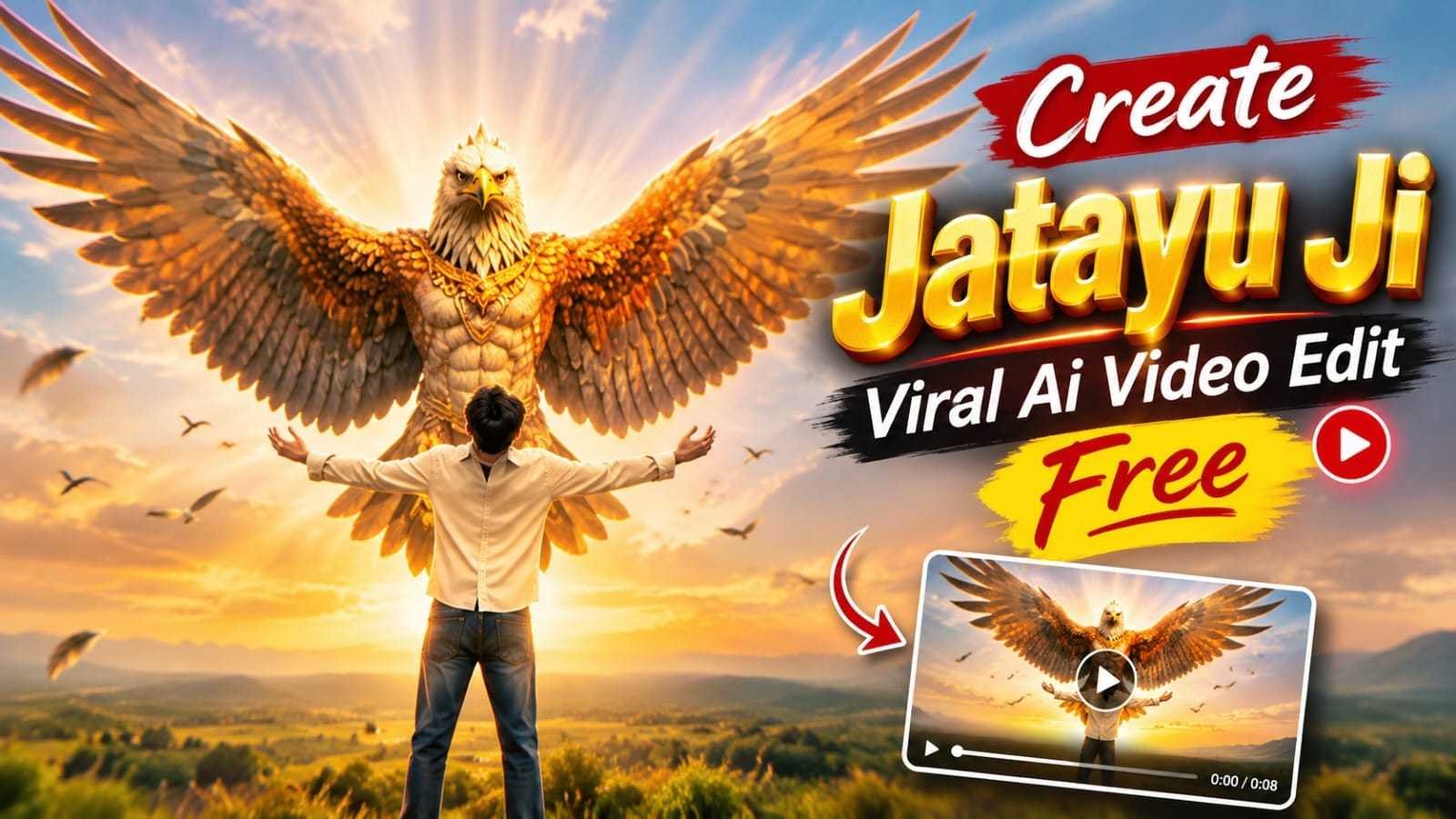
Friends, in today’s post, I am going to share an Instagram-trending AI video trend featuring Jatayu Ji from the Ramayan movie. As we know, the Ramayan movie has been recently released, and the fight scene between Jatayu Ji and Ravan is going viral because of its outstanding VFX and detailed visuals that capture people’s attention. Due to this, the Jatayu Ji trend is going viral on Instagram, and people are creating Jatayu AI videos. If you also want to create such a video for free in a few simple steps, then you are in the right place because I will guide you step by step. Just stay tuned until the end!
Details of Jatayu Ji AI Video Editing
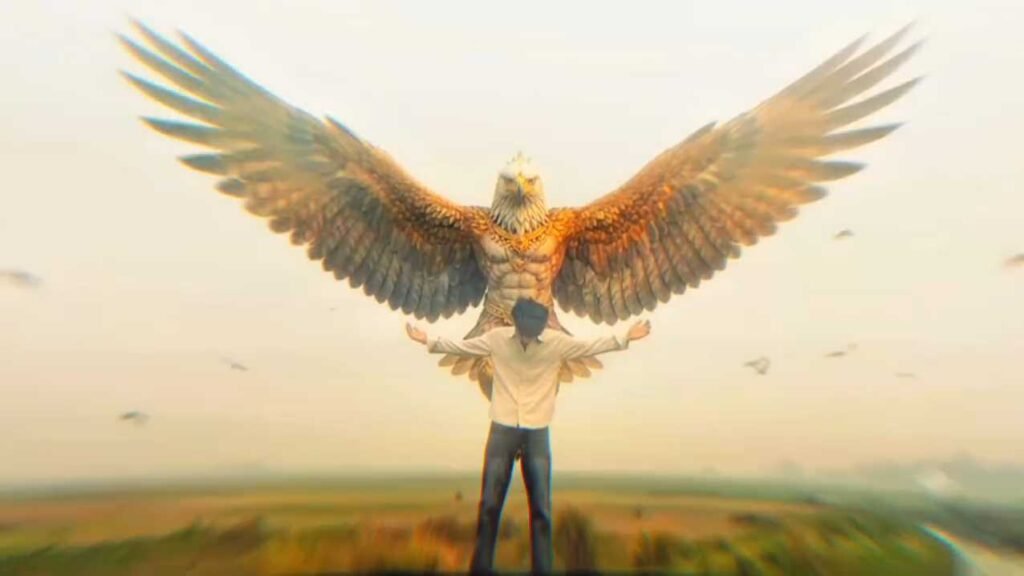
Let me tell you, guys, making this type of video is not as difficult as you might think. Even if you are a beginner in editing, you can still create your own video. First, let’s understand what exactly this Jatayu Ji AI video trend is and why it is going viral on social media. The reason behind its popularity is the recently released Ramayan movie. In this video, a person appears to be standing up from a sitting position, and suddenly, Jatayu Ji appears in the background along with lots of small birds, making the scene look absolutely insane.
What do We Need to do for this edit
To create such a video, first, you need to record your video and import it into any video editing app. Then, take a screenshot of the part where you spread both your hands and upload it to Flow AI along with the video prompt. Once the video is generated, save it and import it into your video editing app. Adjust it according to your needs, and that’s it! Your video is ready.
Start frame: the first photo. End frame: the second photo (optional). Keep the same person (face, black hair, beard, black hoodie with grey-and-black puffer vest), the same location (blue sky with thin clouds, green trees, street lamps, signboard on the left), and the same natural daylight in every frame. Photorealistic, 16:9, real phone-camera footage look, true-to-life colors, 4K detail.

The camera is completely locked and still. There is no camera movement, no zoom and no shake. The frame stays exactly like the first photo throughout the video.

The person stays in the same pose the whole time, looking to the side and upward toward the sky as in the photo. His face does not turn back and his body does not rotate. Only very subtle natural motion is allowed: slow breathing, a gentle wind moving his hair and vest, and a calm, awed expression.

From below the horizon behind the treeline, a gigantic eagle-like bird (Jatayu) slowly rises upward into the sky, the way Jatayu rises in the Ramayana movie scene. First the tips of its huge wings appear above the trees, then its wings open wide and its head and body lift up higher and higher behind the person, with slow heavy wingbeats. It ends high in the sky above and behind him, in the position of the second photo. The bird is solid and fully opaque, not transparent. It has realistic dark brown feathers with fine feather-level detail, a sharp yellow beak and eyes, and natural shadows. Its wingspan is enormous compared to the trees and street lamps, and it stays at a distance without ever coming too close to the camera. As the bird rises, the treetops sway and a few leaves and small birds scatter upward in the wind. The wings move with powerful, physically realistic flaps and natural motion blur, in smooth slow motion. Lighting stays the same natural blue-sky daylight as the photos: no glow, no lens flare, no light bloom, no fire, no orange tint, no color grading.

Mood: awe, epic but grounded. It should look like real footage, not CGI.
How to Generate Jatayu Ai Video on Flow Ai
Follow the steps below for AI video generation on Flow AI.
- First, click on the Generate Video button given above.
- You will be redirected to the Flow AI website, where you need to log in or sign up.
- Now, click on New Project and adjust the settings. First, select Video and then Frames.
- Set the aspect ratio to 16:9, select Omini Flash 1.1, and set the duration to 10 seconds.
- Now, upload your hand-spread photo and paste the video prompt.
- Finally, click on the Generate button and wait for a while.
How to Generate Ai Video on Google Gemini
To generate the Jatayu Ji AI video using Gemini, first open the Gemini website or app and log in with your Google account. Now, select the Create Video option, upload your hand-spread screenshot, and paste the Jatayu Ji AI video prompt shared above. Make sure your prompt includes all the necessary details about Jatayu Ji’s appearance, massive wings, and flying birds while preserving your original facial identity, clothing, and background. Finally, click on the Generate button and wait for Gemini to create your AI video. Once generated, preview and download the video to your device. You can then edit it using any video editing app by adding suitable background music and making the necessary adjustments.
Conclusion
In this article, I have explained how to create the Instagram-trending Jatayu Ji AI video using Flow AI in a few easy and simple steps. I have also shared information on how to record your video and edit it using any video editing app. I hope this post helps you create this trending AI video. If you face any problems while using Flow AI during video creation, you can share your queries in the comment section or contact me through my social media handles. I will try to resolve your problems as soon as possible.