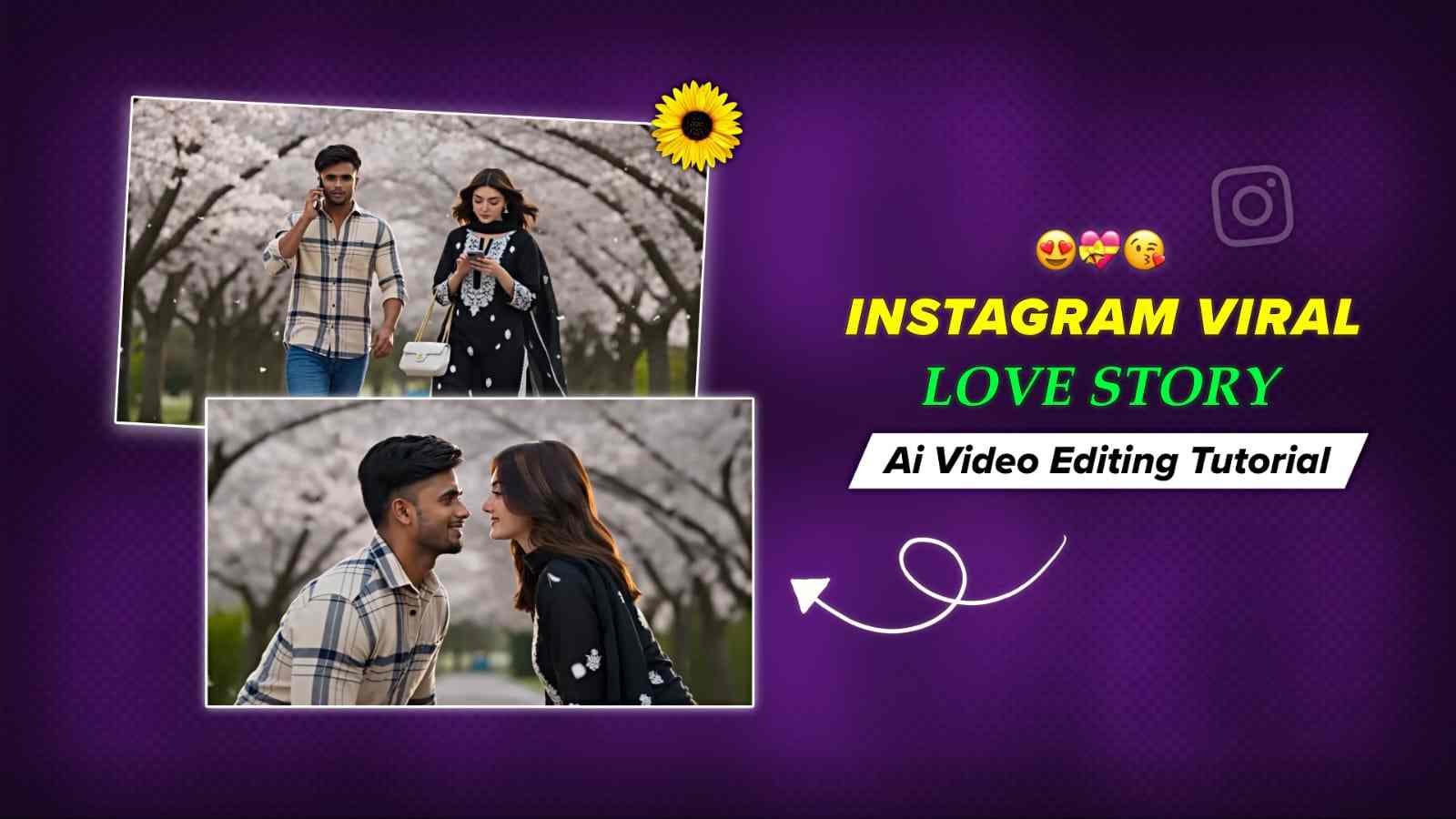
Currently, cinematic AI videos are going viral on Instagram, and many creators and users have already made such lovely couple AI videos. Guys, if you are in love with someone, then this article is going to be very helpful for you because here I am going to share the A-to-Z process through which you can make your own video. After creating the AI video, you are free to add any romantic song, for example, “Pal Pal,” which is sung by Talwiinder. In the following paragraphs, I have provided complete details regarding how to generate an AI video with Flow AI or Google Gemini, so go through the entire article for better results.
Why Do People Love to Create Love Story AI Videos?
Love Story AI Videos have become popular because they allow people to turn their photos into beautiful romantic moments without needing professional cameras, actors, or advanced video editing skills. With AI tools like Gemini and Flow AI, users can create cinematic couple videos featuring realistic transitions, emotional expressions, and creative love-story scenes within minutes. Many people create these videos for their girlfriend, boyfriend, partner, or crush and share them on Instagram Reels and other social media platforms. Trending romantic songs, cinematic effects, and personalized photos make these AI videos more emotional, engaging, and fun to share with someone special.
Video Prompt for Cinematic AI Video Generation
FACE & COSTUME LOCK: Keep both characters' facial identity, hairstyle, skin tone, body proportions, clothing, accessories, and appearance 100% consistent throughout every scene. No changes in face, outfit, hairstyle, or colors between shots.

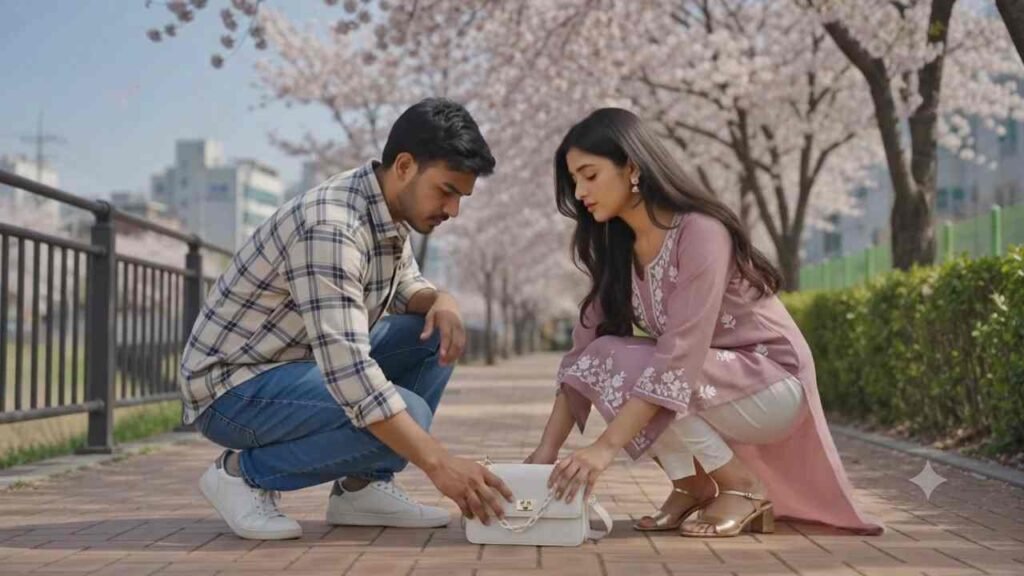
LOCATION: A beautiful Korean spring sidewalk with a brick-paved pathway beneath a dense canopy of blooming cherry blossom trees. Soft pink blossoms, fresh green leaves, and fallen petals decorate the ground. A black metal railing runs along the left side, while a green hedge wall lines the right. Modern city buildings appear softly blurred in the background beneath a clear blue sky. Natural spring daylight with a calm, romantic atmosphere.

CHARACTERS:

Man: 24 years old, athletic build, South Asian skin tone. Wearing a beige and navy plaid long-sleeve shirt with rolled-up sleeves, blue jeans, and white sneakers. Short wavy dark hair, light stubble. Walking casually while talking on his phone held to his right ear, slightly distracted with subtle lip movement.

Woman: 20 years old, slim build, South Asian skin tone. Wearing a mauve embroidered kurti with delicate white floral detailing, white cropped trousers, gold block heels, and carrying a white chain-strap handbag on her right arm. Long wavy hair, minimal makeup, and a bracelet on her wrist. Looking down at her phone while scrolling as she walks.

SCENE 1 (0:00–0:03) – ESTABLISHING SHOT: Medium-wide cinematic shot. Cherry blossom petals drift naturally through the air. The man enters from the left while talking on his phone. The woman enters from the right, focused on her phone. Both walk toward each other as the camera slowly pushes forward. A gentle breeze moves their hair, clothing, and the falling petals.

SCENE 2 (0:03–0:06) – THE COLLISION: Medium close-up. They accidentally bump shoulders. The man instinctively lowers his phone while the woman looks up in surprise. Her handbag slips from her arm in graceful slow motion and falls onto the brick pathway. Low-angle insert shot showing the handbag landing gently as a single cherry blossom petal drifts beside it.

SCENE 3 (0:06–0:10) – FIRST EYE CONTACT: Both crouch down at the same time to pick up the handbag. The man's phone is forgotten in his hand. Extreme close-up of the man's eyes showing genuine surprise, followed by an extreme close-up of the woman's eyes as her expression softens. The camera slowly pulls back into a tight two-shot as they pause, faces close together, surrounded by drifting petals. Her hair gently falls forward while his hand hesitates above the handbag, creating a quiet romantic moment.

SCENE 4 (0:10–0:13) – THE BAG MOMENT: Close-up of the woman's hand, with her bracelet clearly visible, picking up the handbag. A cherry blossom petal rests beside it. The man's hand slowly pulls back. The camera rises smoothly to reveal both faces as they exchange subtle, shy smiles. Natural skin tones, soft expressions, and realistic daylight. His phone remains loosely held in his hand.

SCENE 5 (0:13–0:15) – ENDING: Both slowly stand while maintaining gentle eye contact. A quiet, unspoken connection forms between them. Cherry blossom petals continue drifting through the air as the camera slowly pulls back to reveal the full blossom canopy overhead. Natural spring daylight, soft cinematic atmosphere, and a smooth fade to white.

STYLE: Ultra-realistic 4K cinematic quality with natural daylight lighting. No exaggerated golden glow, artificial eye reflections, or unrealistic highlights. True-to-life colors, balanced exposure, soft shadows, shallow depth of field, gentle bokeh, subtle slow motion, realistic motion blur, slight handheld camera movement, and continuous drifting cherry blossom petals. No dialogue, subtitles, logos, or text. 16:9 aspect ratio. Total duration: 15 seconds.
How to Create an AI Video in Google Gemini
Creating an AI video in Google Gemini is simple if the video generation feature is available on your account. First, open the Gemini app on your smartphone and sign in with your Google account. Tap the plus icon and select the video option. Now, upload the photo or images you want to use for your AI video and enter a detailed video prompt describing the scene, movement, camera angle, and overall style you want. Submit the prompt and wait for Gemini to process it. Once your AI video is generated, you can save it and use any video editing app to add music, color grading, or other finishing touches.
How to Generate an AI Video with Google Flow
Generating an AI video with Google Flow is an easy process, especially when you already have your images and video prompt ready. First, open Google Flow in your browser and sign in with your Google account. Click on the New Project option and choose the available video generation mode. Upload the image or images you want to turn into a video, then paste your AI video prompt describing the scene, character movements, camera motion, and cinematic effects. Start the generation process and wait for Flow to create your video. Once the video is ready, save it to your device and add music, color grading, or other effects using your favorite video editing app.
Overall
Friends, in this article, I have basically talked about the Instagram-trending AI video editing process. If you are active on Instagram, then you might have seen couple love story AI videos that look so realistic and cinematic. So, if you also wish to make your own video with your girlfriend or crush, then it would be very interesting. If you do not have Gemini Pro, then you can use Flow AI. Both give realistic results. If you face any issues, then you are free to tell me about your problems in the comment box.