Friends, in this article, I am going to share some very important knowledge about the AI drone video editing process. If you do not have a drone but want to create cinematic shots of yourself or your favorite places, then this article is going to be very helpful for you. In today’s article, you will learn how to transform your images into cinematic AI drone videos using Google Gemini for free. You do not need to spend any money, put in extra effort, or invest a lot of time to create stunning drone videos. You simply need to follow a few simple steps, through which you can easily generate AI drone videos. Below, I have shared A-to-Z details that will help you achieve the best results, so please read this entire article carefully to get the best possible outcome.
Details of Drone Ai Video Editing Prompt
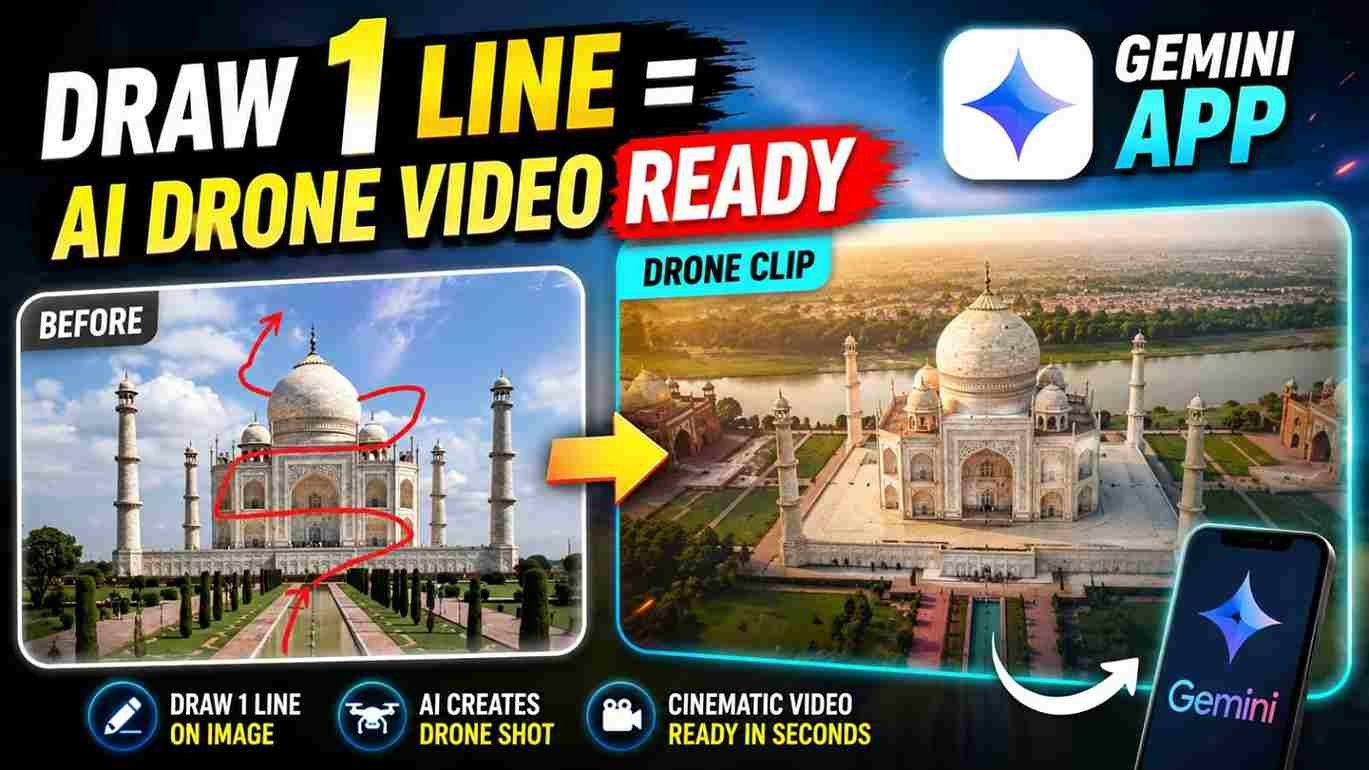
Let me tell you about the Drone AI Video Editing Prompt. This drone prompt is a command that Google Gemini AI understands to generate realistic results. The prompt covers all the positive and negative instructions that help the AI understand your requirements in detail. The prompt is provided in the paragraph below, and you can copy it with just one click. You do not need to press, hold, and drag to copy the entire prompt. Simply click the Copy button located at the top-right corner. After copying the prompt, open the Gemini app for the best experience, go to the Video option, and upload the image that you want to turn into an AI drone video. Then, click on the image and drag the red line to define how the drone should move. This red line tells the AI the direction and movement of the drone. After that, paste the prompt, select Portrait (9:16) mode, and wait for a few moments. Your AI drone video will be ready.
AI Drone Video Generation Prompt
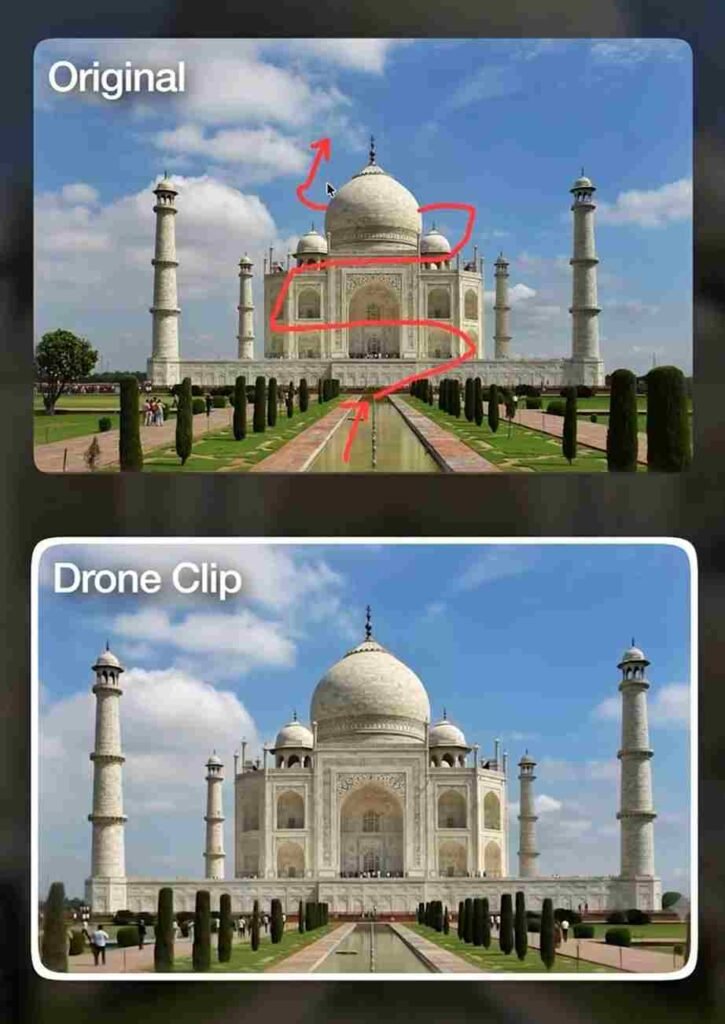
Use the attached annotated image as the starting frame. The red line represents the drone's flight path and waypoints only. The white arrows represent the camera viewing direction only. These are production guides for planning the animation and are not part of the scene.

Before the animation begins, automatically remove all production guides-including the red flight path, white arrows, waypoint numbers, labels, text, graphics, overlays, and annotations-to reveal the original clean image underneath.

Create a single continuous,

photorealistic aerial drone POV that follows the exact trajectory defined by the red flight path, accurately matching its curves, altitude changes, direction of travel, pacing, and endpoint. Simultaneously, orient the virtual camera according to the white directional arrows at every moment so the viewing direction follows the planned camera orientation while naturally keeping the main subject perfectly framed

The drone flight path and camera orientation are the highest-priority instructions and must be followed precisely, even when the direction of travel differs from the viewing direction. Use smooth cinematic drone physics with realistic inertia, gentle banking, natural acceleration and deceleration, stabilized gimbal movement, and seamless transitions. There must be no cuts, jumps, teleports, or abrupt camera

rotations.

Preserve the original scene exactly as shown. Do not modify the environment, architecture, lighting, weather, colors, textures, subject placement, scale, or composition. The only change should be the realistic virtual camera movement following the planned flight path.

Final Output Requirements:
No physical drone should ever be visible.

No red flight path lines.

No white direction arrows.

No waypoint numbers.

No labels or instructional text.

No overlays, graphics, guides, UI

elements, or annotations.

No watermarks.

No editing marks of any kind.

The final result must look as if a real drone naturally captured the footage in a single uninterrupted cinematic flight, with zero evidence that any planning guides or reference graphics ever existed.
What is Google Gemini? Features and Benefits Explained
Google Gemini is Google’s AI-powered assistant that helps you create content, answer questions, generate images and videos, write text, and solve problems with simple prompts. It is easy to use, supports multiple languages, provides fast and accurate results, and can understand both text and images. Whether you are a student, content creator, or professional, Google Gemini helps you save time and complete tasks more efficiently.
Conclusion
In today’s post, I talked about Instagram’s trending AI drone video editing using Google Gemini. I explained the complete process, including how to use Gemini, upload a photo, and draw a line on the image to define the drone’s movement direction. I also explained what Google Gemini is and highlighted its amazing features. I have clearly shared the complete tutorial, and I hope you enjoyed this AI drone video generation process. If you have any questions or need any help, feel free to let me know in the comments or reach out through my social media handles.